Have you noticed strange Japanese text appearing on your website in Google search results? If so, your site might be infected with the Japanese Keyword Hack (also known as the Japanese SEO Hack). This malware injects malicious code into your WordPress files, hijacks search rankings, and redirects your visitors to spammy sites.
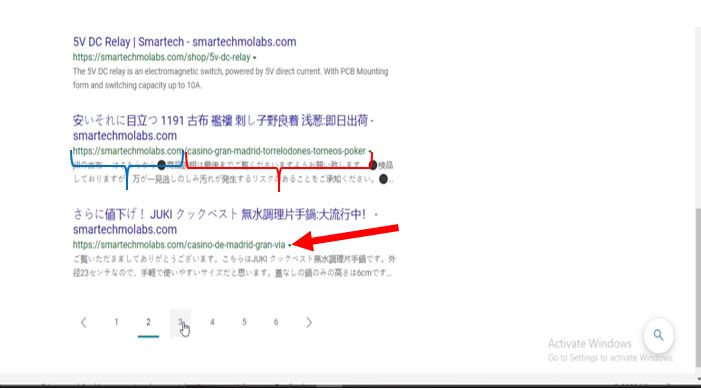
But don’t worry! In this guide, I’ll walk you through the complete process to fix and remove the Japanese Keyword Hack step by step. Whether you’re a beginner or an experienced website owner, this guide will help you clean up your website for good.
As shown in the image above with the braces and arrow. The search results produced a Japanese SEO page that isn’t a content we created and yet the domain name (shown in blue brace) still remain our own. But the infected page has been changed. For our own website (used as illustration) here, this has been backlinked to a Casino webpage in Madrid (the brace shown in red). These pages like the one shown in the image above points to the hacker’s page.
Read Also: How to Make Money on Facebook: Your Ultimate Guide
What Is the Japanese Keyword Hack?
The Japanese Keyword Hack is a type of SEO spam attack where hackers inject malicious code into a website, usually WordPress sites, to generate spam backlinks to their sites. These links often lead to counterfeit product pages, scams, or phishing websites.
The Japanese Keyword Hack is a type of SEO hijacking attack where hackers inject Japanese text, spam pages, or fake product listings into your website. These pages are usually designed to promote counterfeit products or redirect visitors to malicious stores. The attack often affects WordPress websites because of outdated plugins, insecure themes, or weak login credentials. Once inside, the hacker creates thousands of hidden pages filled with Japanese characters, making your site appear compromised to both search engines and human visitors.
The most frustrating part of this hack is that it often goes unnoticed until your traffic drops or Google alerts you. It can harm your search rankings, damage your reputation, and cause long-term SEO issues if not fixed quickly.
How Does This Hack Work?
The Japanese Keyword Hack works by infiltrating your website files and database, inserting spam content that search engines can crawl but regular visitors cannot see. This is often achieved by using backdoor scripts placed inside your WordPress theme folders or plugin directories. Once these scripts activate, they automatically generate unwanted pages filled with Japanese keywords.
Hackers may also modify your sitemap, alter your .htaccess file, or cloak content so only search engines see the spam pages. While the site appears normal to you, Googlebot sees fake content, which leads to unexpected ranking changes and warnings in Google Search Console.
The attack continues to spread until the malicious scripts are removed completely.
- Hackers exploit vulnerabilities in WordPress plugins, themes, or outdated software.
- They inject malicious PHP, JavaScript, or database code.
- The code displays Japanese text and redirects users to harmful websites.
- It negatively affects your site’s SEO rankings and credibility.
Symptoms of the Japanese Keyword Hack
The most common symptom is discovering Japanese text appearing in search results under your domain name. When you click the result, the page may redirect to another website or show content that does not exist in your WordPress dashboard. You may also notice strange URLs, unfamiliar files inside your hosting account, and sudden ranking drops.
Google Search Console typically displays warnings about hacked content, unusual spikes in indexed URLs, or manual actions. Another sign is when your sitemap is altered, showing pages you didn’t create. These symptoms often confirm that your site has been compromised and needs immediate cleanup.
- Strange Japanese text appears in Google search results when you search for
site:yourwebsite.com. - Your website contains hidden malicious files in cPanel.
- Unexpected new users appear in WordPress.
- Spammy URLs are being indexed on Google from your domain.
- Google Search Console sends a Security Issue Warning.
Step-by-Step Guide to Fix and Remove the Japanese Keyword Hack
Step 1: Check for Japanese Spam Pages on Google
The best way to be sure is to use a search engine. If we go to the Google search engine (which is the most popular) using our browser and type site:nameofwebsite.com. An example is shown in the picture below.
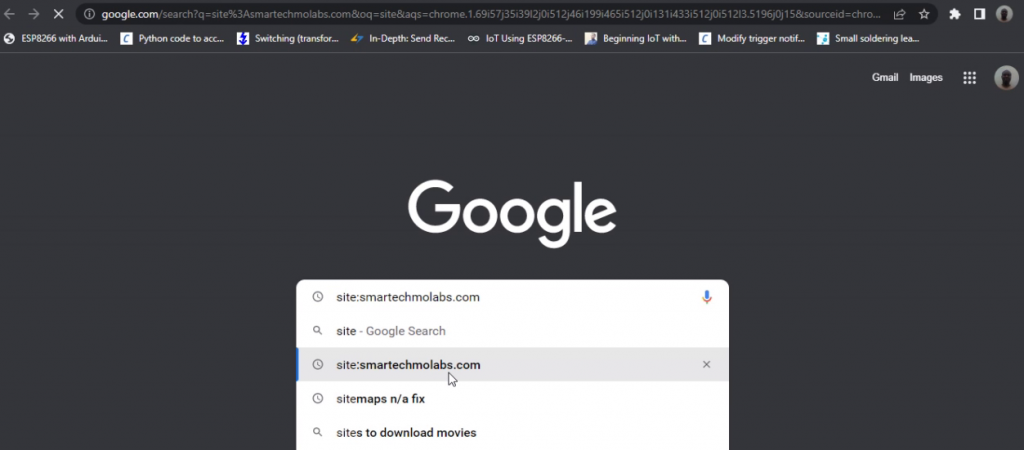
The results displayed indicated that the site (our website) was under Japanese SEO spam siege. The pages were written in Japanese, and even those written in English were detailed in another language, as shown below.
Read Also: How to Fix Page Redirects In Google Search Console: Boost Website Traffic
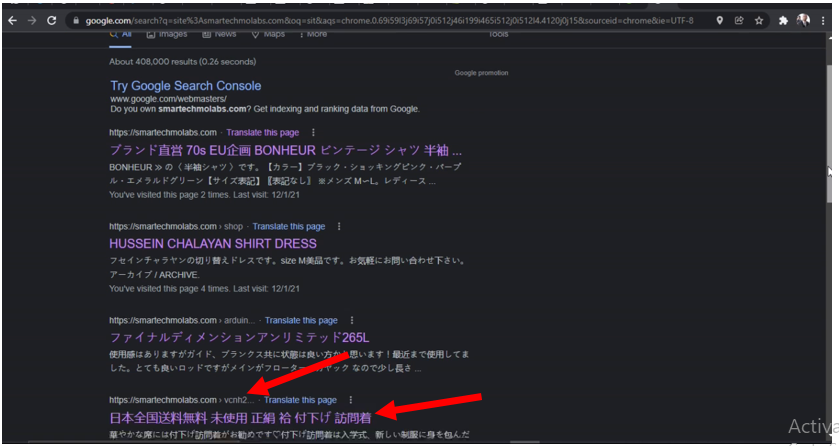
These links are not directed to our website but to other foreign webpages that serve the interests of the hacker. And if our website visitors click on it, they get redirected to another website (as indicated by the red arrows above). As an example, clicking on the labelled page link redirects the visitor to this Japanese clothing store shown below.
Read Also: Top 10 Web Hosts for Your WordPress Website
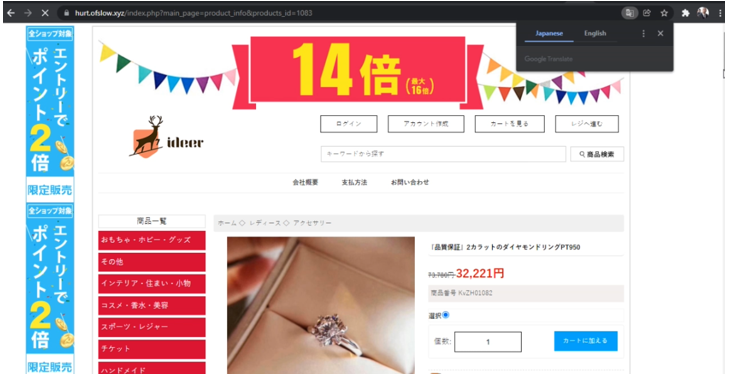
This is because the hackers have already added themselves as a property owners in the Google Search Console. Some of the reasons they do this is to increase profits by manipulating our own site’s settings.
In summary, to confirm that your website is infected:
- Go to Google and type:
site:yourwebsite.com. - Check if there are Japanese characters in the search results.
- Click on the spammy URLs and inspect where they lead.
Step 2: Log Everyone Out of WordPress
Before making changes:
- Reset all passwords (admin, database, cPanel, FTP).
- Go to
Users > All Usersand remove any suspicious accounts.
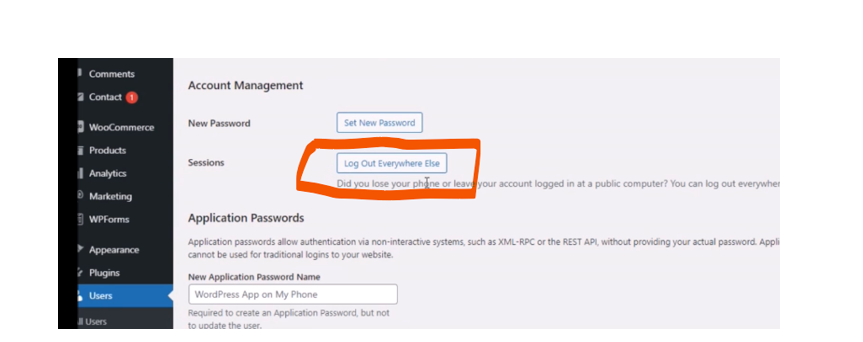
Your WordPress admin page is the first place hackers use to inject malware codes that would bring the SEO Spam hack to your WordPress website. If your WordPress login password has been compromised, it needs to be changed. And that is a big “IF”. Especially when you are running a WordPress website that enables different admin users. The best thing to do is to use the admin user access and log everyone out. To do this, go to users, navigate to profile, scroll down to Account Management. At sessions, click on log out everywhere else, as shown below.
Step 3: Change Every Login Passwords
Change Password for WordPress dashboard
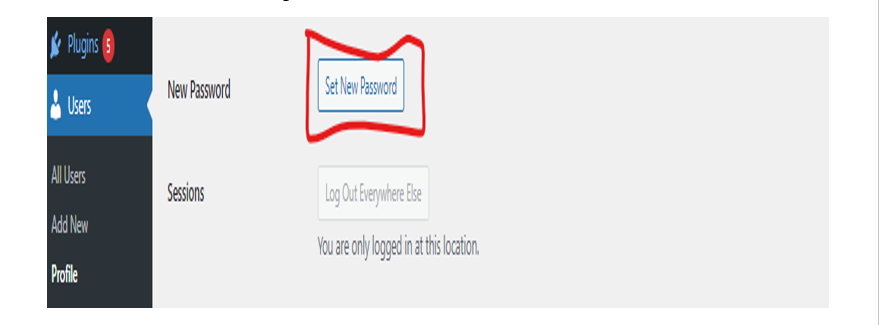
This means creating new passwords for the Admin, The editor, the contributor of the WordPress website etc. Go to Account Management and locate New Password and Set New Password.
Change Password for cPanel Password
First, we have to go to our admin for our website cPanel. Log in and check the right-hand side of our dashboard.
Click on our username, then account preferences as shown below. Scroll down to password and security.

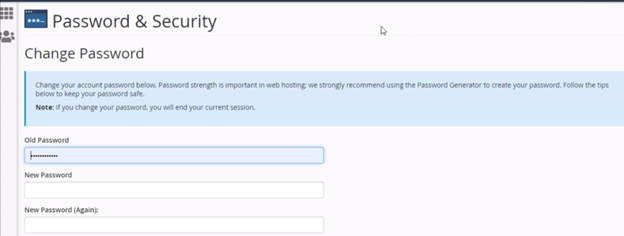
We changed our password by navigating to the change password page and input our new password inside the input password box.
Step 4: Scan Your Website for Malicious Code
Fix & Remove Japanese Keyword Hack: Download and Install Wordfence Security Plugin
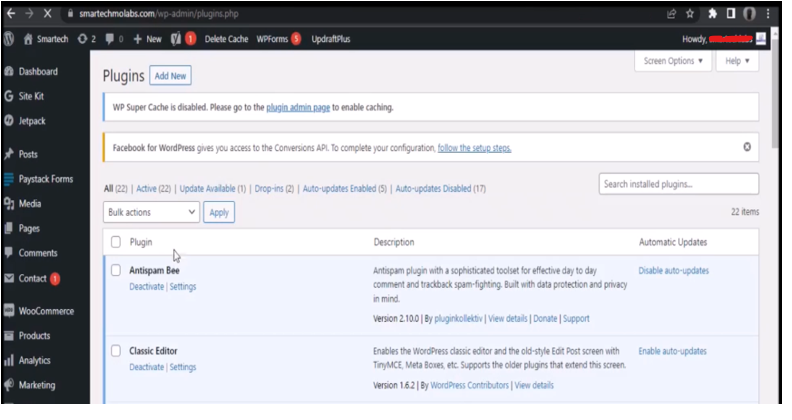
Go to the left-hand side panel of your WordPress admin dashboard, hover over the Plugins tab, then navigate to Install Plugin. Next, click on “Add New.”
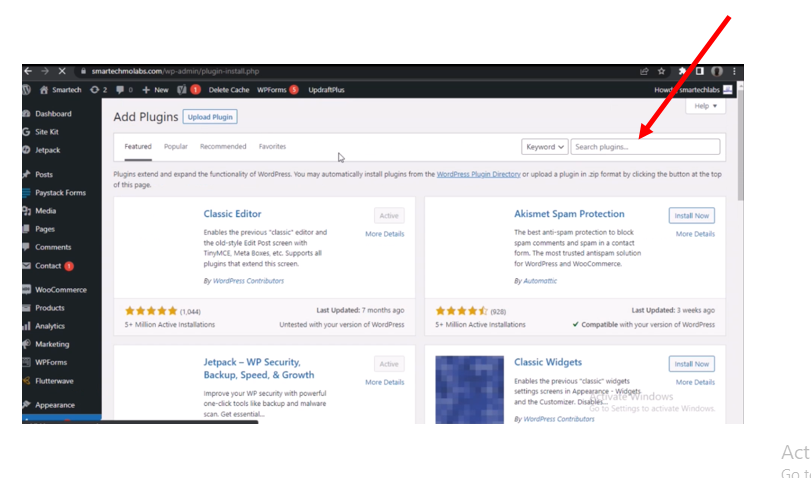
Click on the search plugin input box as shown above. And type “Wordfence.” Alternatively, you can follow the link given here to download . We used the free version of the plugin here. We recommend you do too (that is kind of why the how-to was written). Or if you have the money, you can go for the premium version.
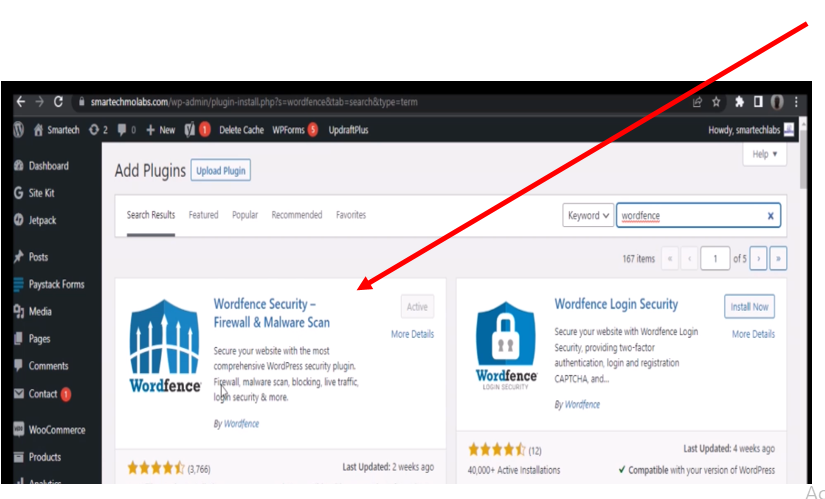
Click on Wordfence Security- Firewall & Malware Scan. Install it and activate it.
Once this is done. Return to your plugins page or click on Wordfence on the left hand side of the dashboard.
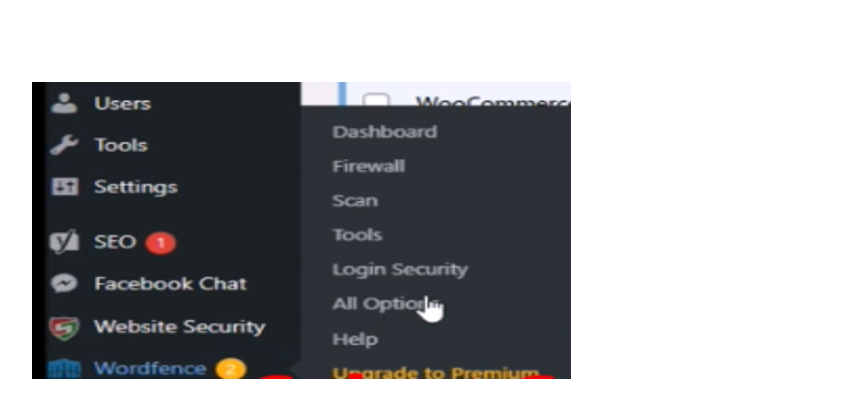
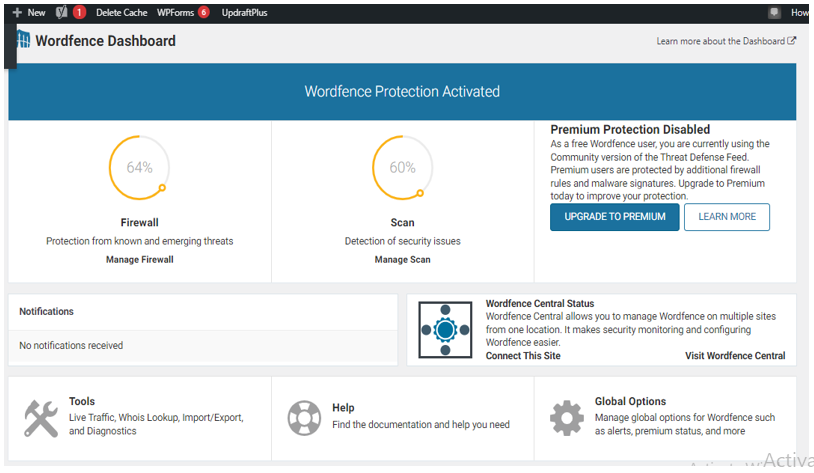
You can opt to go to the Wordfence dashboard before anything else. This would offer you the chance to see your website security stats before proceeding to scan your website for malware. This is a very crucial part in this how to fix/remove Japanese keyword hack/Japanese SEO hack free wiki.
Click on Scan next from the left hand side of the dashboard, hover over Wordfence and select Scan option.
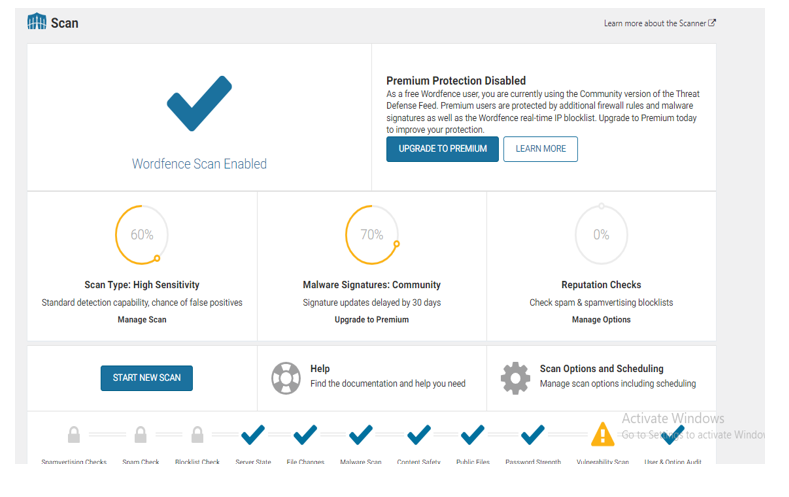
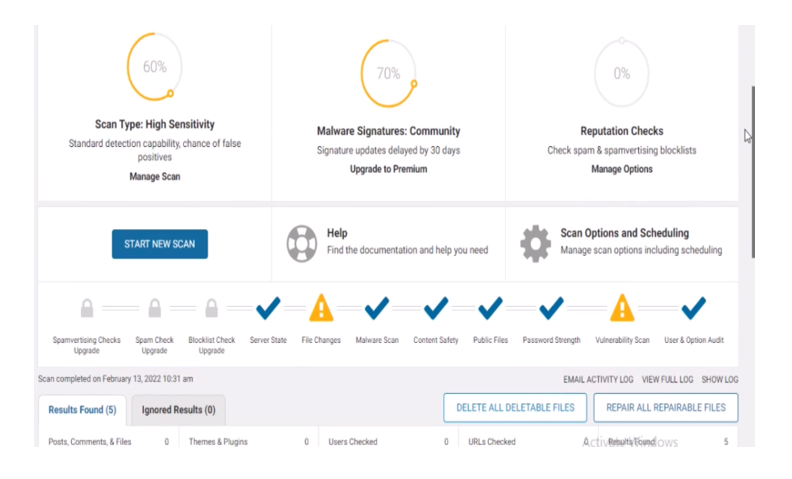
Click on Start New Scan and wait until it has finished scanning. As shown with our example website here, There are two issues; one is File Changes and the other is Vulnerability Scan Issues. This means that our files may have been altered by a hacker.
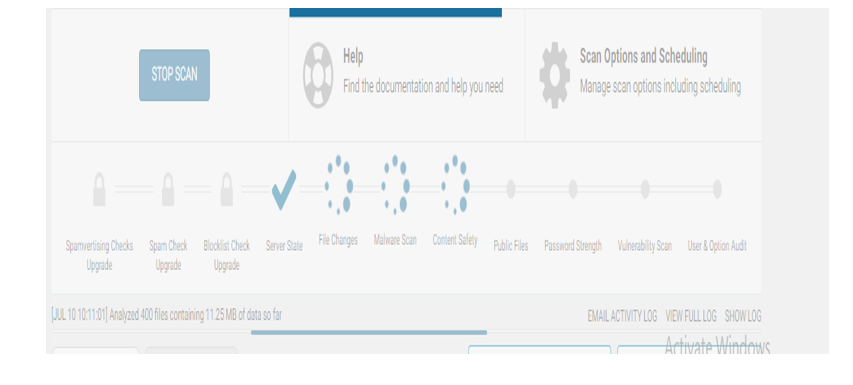
The scan would keep loading until it has finished.
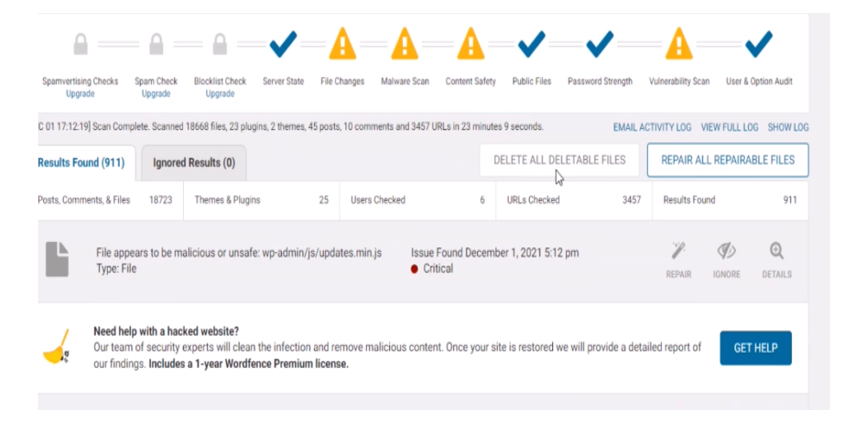
From the scan results, we could either delete or repair the files that are corrupt. I would recommend repairing the repairable files. Then deleting the files that are not repairable. Click on repair all repairable files and wait for the system to repair the files it can repair. These are the small steps that would lead to a giant leap on our search for how to fix/remove Japanese keyword hack/Japanese SEO hack free.
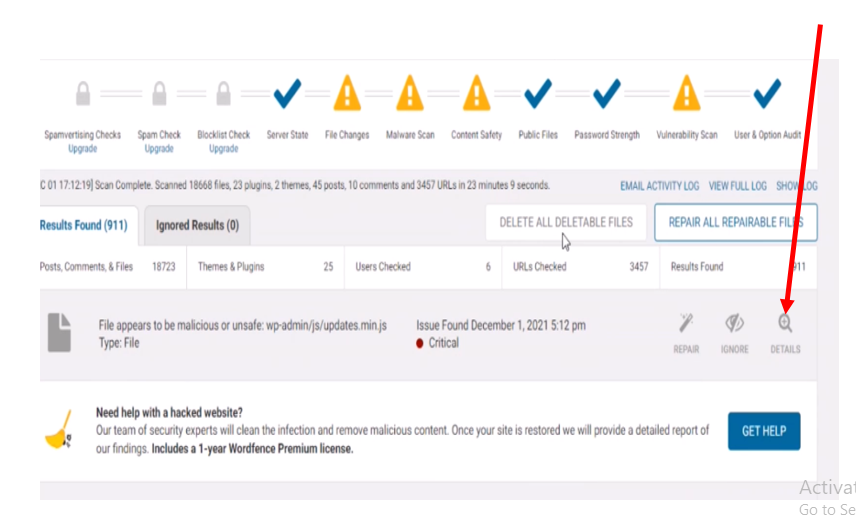
Next, for the files that are not repairable, you can either delete them or click on the details of each file to view the severity of each infected file. You can check out the difference in each file to see the changes in each file.
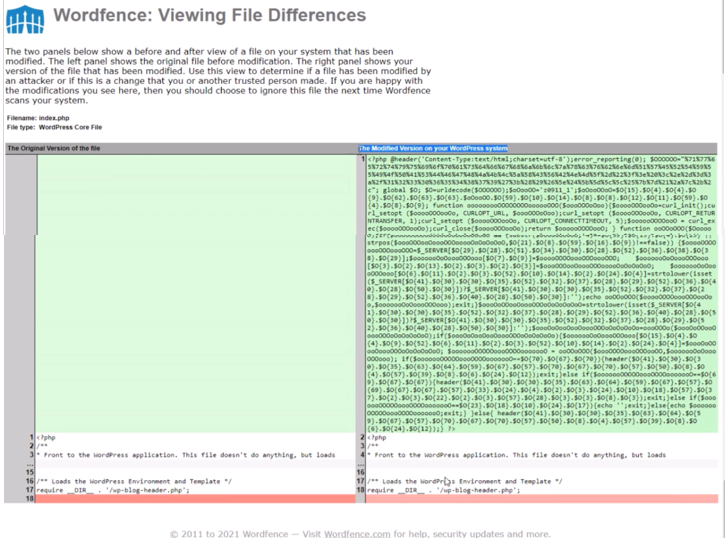
From the file difference, we can see a lot of things on this .php file. This was the exact file that was corrupted that made it possible for the Japanese keyword hack/Japanese SEO spam. From the left hand side of this comparison, we can see the original .php file versus the file that was modified by the hacker on the right hand side. The solution to this can’t be resolved automatically by Wordfence because the .php file is a file on the cPanel side. The Wordfence plugin doesn’t have access to the file.
Get the location of the corrupt file by looking at its directory path above on the Wordfence file viewer as shown below.
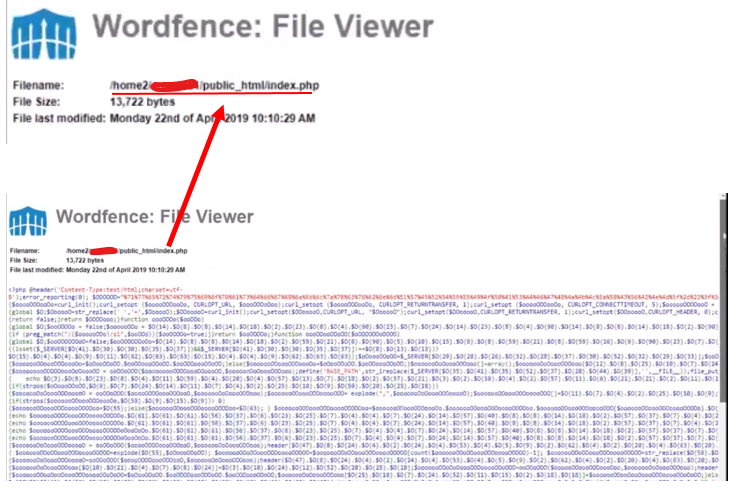
Using this, we locate the file in the cPanel public_html directory.
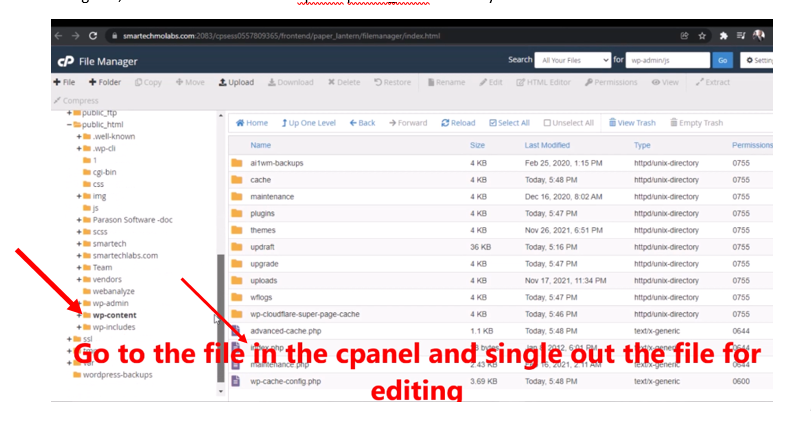
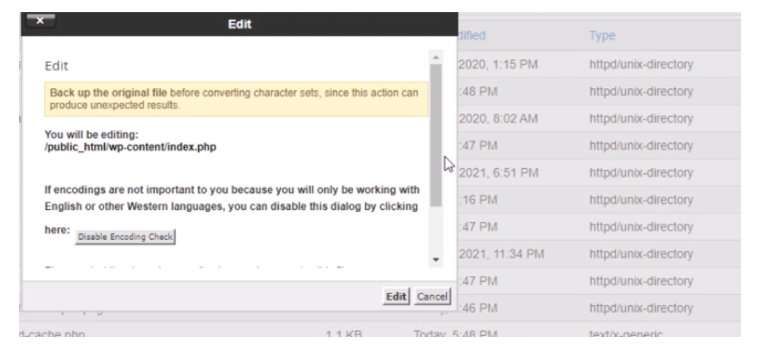
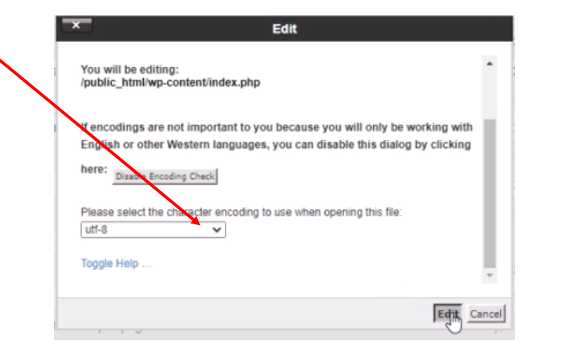
Open this for editing and choose utf-8 as your decoding format.
With the file opened as shown below; we can delete the hackers Japanese SEO spam/Japanese Keyword hack codes. If this step is not judiciously done, there won’t be success in the how to fix/remove Japanese Keyword Hack/Japanese SEO hack free guide.
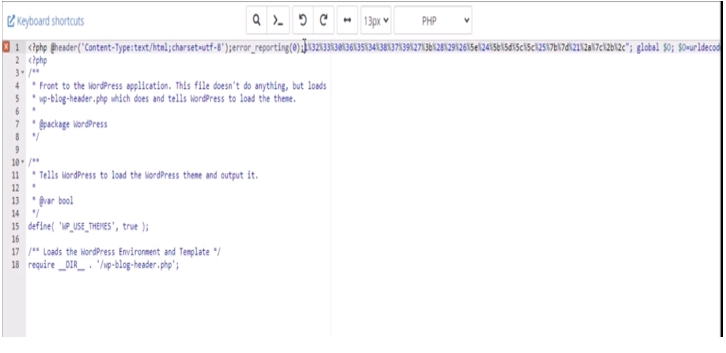
We begin by deleting the codes that were not already in the original file displayed by Wordfence file viewer. After removing the codes, save the file and go back to Wordfence and rescan your website files. Using our demo website example, the file changes result showed that the issue has been resolved.
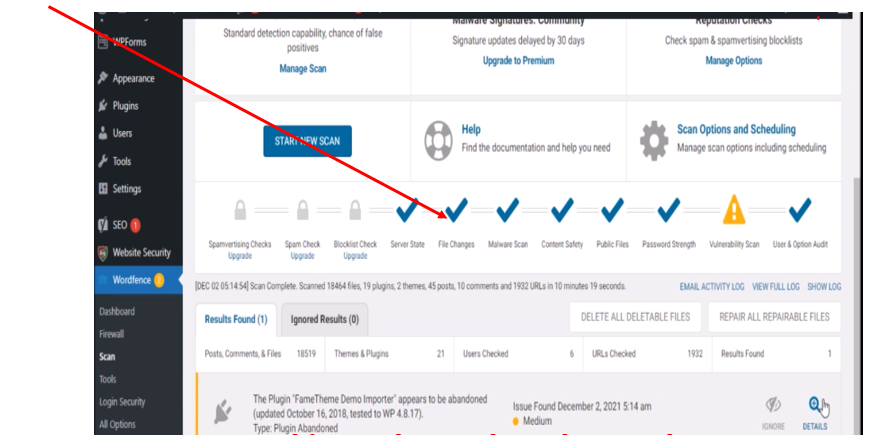
The vulnerability scan can be further pursued but this would mean carefully tracking out the files that poses security threats to your website.
In summary, to find the infected files:
- Use Wordfence Plugin
- Install and activate the Wordfence Security Plugin.
- Run a full site scan.
- Wordfence will detect malicious files.
- Check Files Manually
- Go to your cPanel > File Manager.
- Look for suspicious files in
wp-content,wp-includes, orwp-admin. - Inspect the
.htaccess,wp-config.php, andindex.phpfiles for unusual code.
Step 5: Remove Malicious Code
Once you’ve found infected files:
- Open each file in File Manager or FTP.
- Remove suspicious code (it may look like base64 encoding or unreadable characters).
- Save the changes.
Step 6: Use Google Search Console
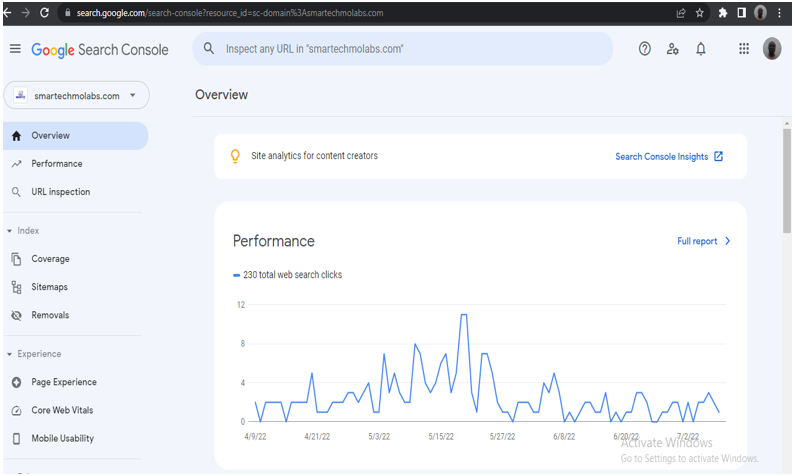
The google search console helps you to get your website noticed and discovered on Google search results. IF your contents are already showing up on Google search. The chances are that you are already using the Google search console. To login into your Google Console account, use this link. You may have to log in and verify that you own the domain. If you don’t know how to do this, use Google search or any other search engine to find answers, and if it still confuses you, leave a query regarding this in the comment section. Once you are in your Google search console, the appearance will look something like this picture below.
Step 7: Checking for Infected Japanese SEO backlinks
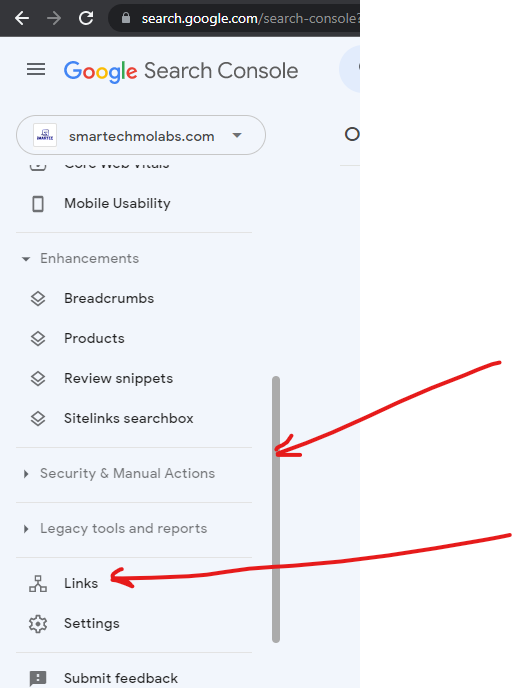
On the left hand side pane (of the image above), hover to reveal the scrolling handle, use this to scroll down until you reach links at the bottom. This is where you click to find all the website links coming in and going out of your website.
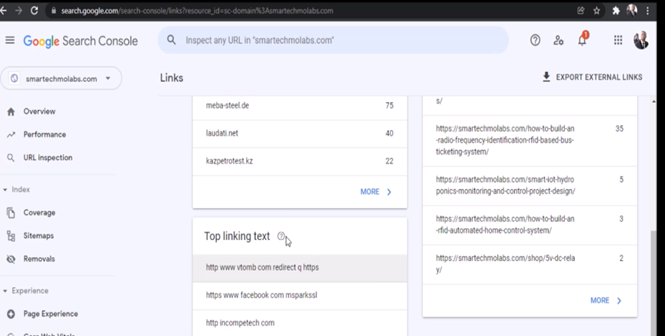
The links would display all your backlinks. You can copy each of the website links and put them on a separate browser to test the links. For the example website used in this tutorial, most of the backlinks were porn sites, casinos, clothing websites etc.
If these websites are allowed for long they could use up your bandwidth rapidly.
When your website is infected with Japanese keyword hack virus, the search results on Google displays pages that have your domain name but the title of those pages can be very misleading.
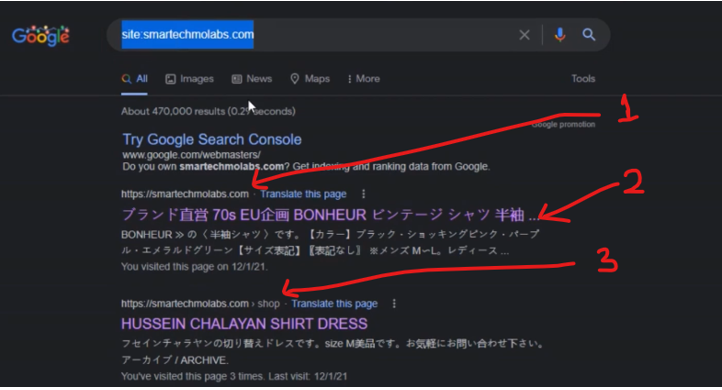
The picture above shows the search results of our website infected with the Japanese SEO Spam virus. But looking closely, the pages displayed are numbered 1, 2, and 3. The number 1 page is the homepage of the website. However, the page it is pointing to was written in a language that can not be understood by English-speaking users, this is also Number 2. The number 3 result was from the shop page, but rather than the electronics components and kits on display at the online shop, it is displaying a Hussein dress shirt. These pages are still linked to our website’s contents. Although it doesn’t display its page content on Google search results correctly, once clicked on, it will take online visitors to our pages.
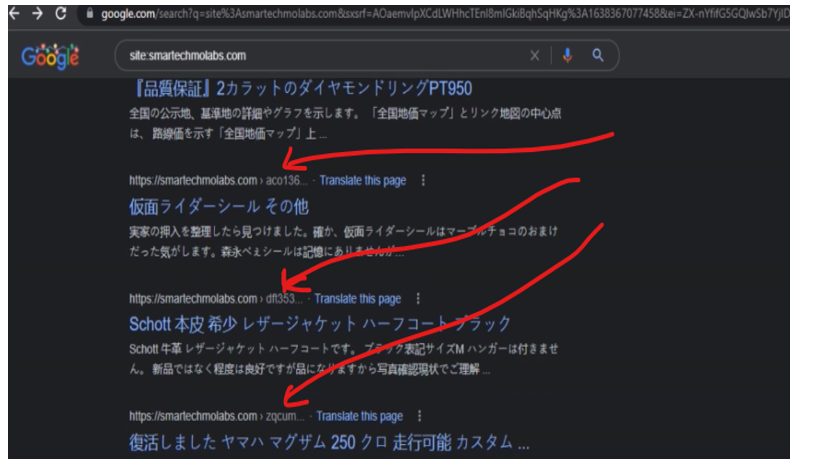
On the other hand, majority of the pages are pointing to another SEO page content. As illustrated with the picture of our website above, the pages here drive traffic away from our website. They are something like “aco136”, “dft353” “zqcum” etc. If a visitor clicks on any of these links, it would take them to the hackers backlinked website pages instead.
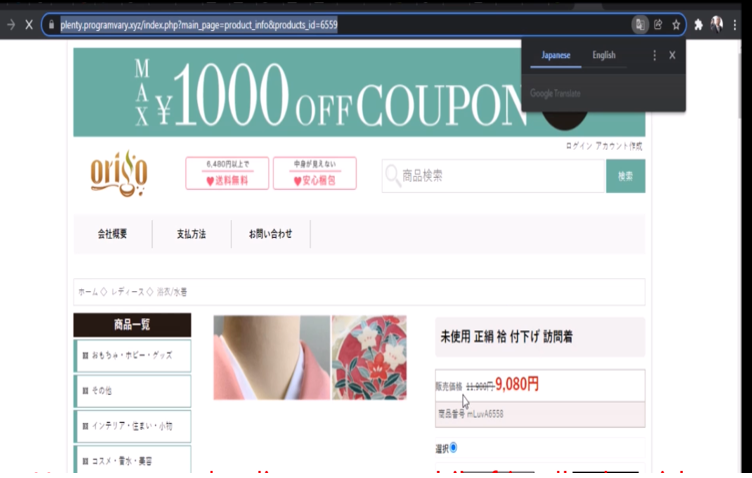
Usually, the Japanese SEO hacker pages are non-mobile-friendly and very slow to load, and it could really drive visitors away from your website. Most people don’t have the time to wait until a slow loading page finishes loading. It could also make Google blacklist your website. To tackle this issue, go ahead and log into your WordPress admin page again.
Step 8: Delete Suspicious Plugins and Themes
Some plugins or themes may be compromised. To check:
- Go to WordPress Dashboard > Plugins > Installed Plugins.
- Delete any unknown or inactive plugins.
- Switch to a default theme (e.g., Twenty Twenty-Four) and delete suspicious themes.
Step 9: Clean Your Database
Hackers may inject malicious scripts into your database. To clean it:
- Access phpMyAdmin from your hosting panel.
- Run the following SQL command to find spam entries:
SELECT * FROM wp_posts WHERE post_content LIKE '%<script%' OR post_content LIKE '%iframe%';Delete the infected database entries.
Step 10: Reset .htaccess File
- Your
.htaccessfile may be hijacked. To reset it: - Go to File Manager > public_html.
- Open the
.htaccessfile and replace its content with:
# BEGIN WordPress
RewriteEngine On RewriteBase / RewriteRule ^index\.php$ - [L] RewriteCond %{REQUEST_FILENAME} !-f RewriteCond %{REQUEST_FILENAME} !-d RewriteRule . /index.php [L]
# END WordPress
Save the file and upload it.
Step 8: Re-index Your Website on Google
Once the malware is removed, re-index your website to restore search rankings:
- Go to Google Search Console.
- Navigate to URL Inspection.
- Submit a request for Google to re-crawl and re-index your site.
Step 9: Improve Security to Prevent Future Hacks
To prevent the Japanese Keyword Hack from returning:
- Enable two-factor authentication (2FA).
- Keep WordPress, themes, and plugins updated.
- Use a strong password and limit login attempts.
- Install a security plugin like Wordfence or Sucuri.
- Regularly scan your site for vulnerabilities.
Fix & Remove Japanese Keyword Hack: Backup your WordPress Content
Before attempting to fix anything, you must secure a full backup of your site. This ensures your original content is safe even if the cleanup process removes or damages files. Backing up your WordPress content involves saving your website files and the database that stores all your posts, settings, and user data.
During cleanup, infected files, spam entries, and suspicious scripts will be deleted. Having a backup prevents irreversible loss. With your content secured, you can confidently proceed to remove the hacker’s changes from your hosting server and WordPress installation.
The backing up of your contents on your WordPress site is also important. However, most of the backups required you to pay for such server services. There are other ways you can get around this. For example, you can use the UpdraftPlus plugin to backup contents on your Google Drive account, provided you have enough storage space there. Whether you choose this option or not, you can still proceed to the next step.
After this is done; we proceed to check if the back-linked Japanese SEO sites are still functional. We go back to Google search engine and type the same search query: site:nameofwebsite.com. In our own demo example, we used our website name as shown in the picture below.
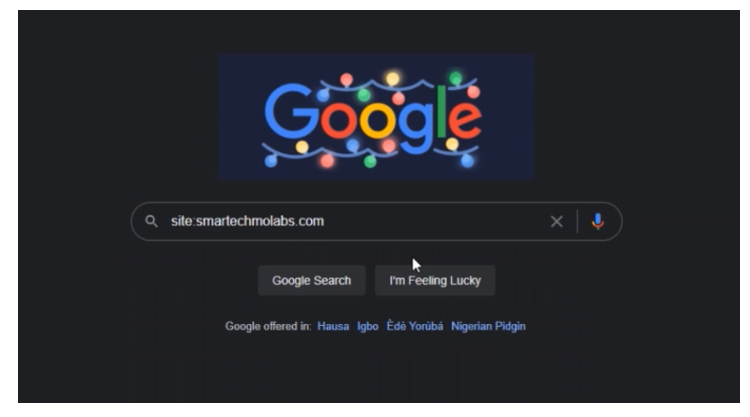
The results shown would still remain the same on Google search results but we are really after the functionality. This means we want to know if the backlinks still redirects visitors to the hackers page.
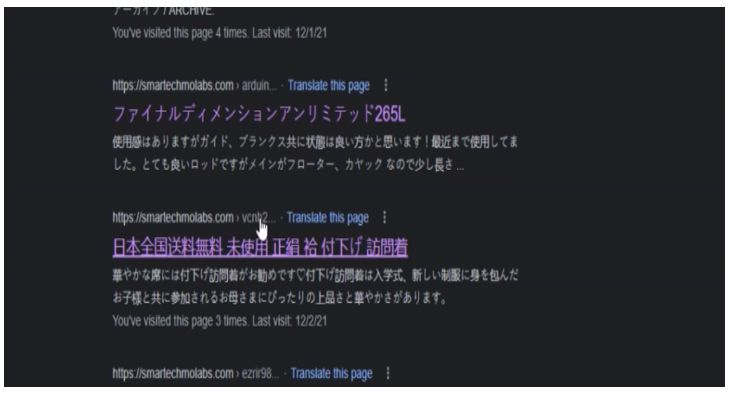
A click on the page results that has the Japanese links should display error 404, page not found for us to know that the changes we made were working.
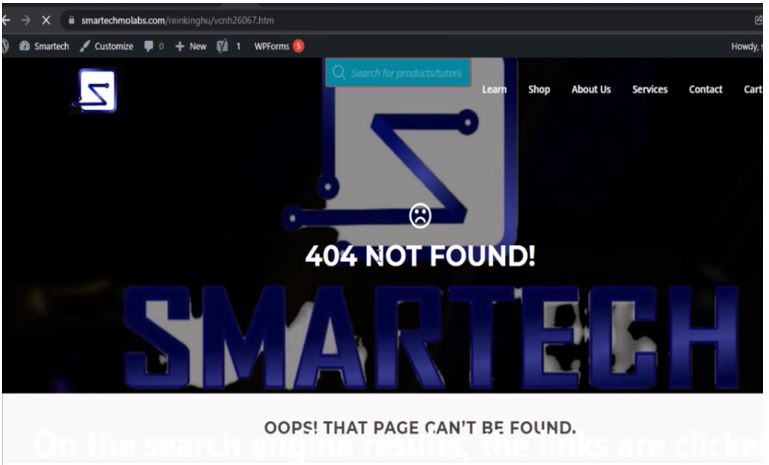
Great. Once you are here. You efforts have finally paid off. The next steps are very easy to finish.
Re-index Your Web Pages across Google Console and other Search Engines
After removing the infected files and restoring your original content, the next step is ensuring Google recognizes the cleanup. This requires re-indexing your website through Google Search Console. By requesting re-indexing, you tell Google to recrawl your pages and replace the hacked versions with your legitimate content.
This process speeds up recovery and helps your search rankings normalize. Other search engines like Bing and Yahoo also provide webmaster tools where you can request a fresh indexing of your pages. Updating your search engine visibility helps remove leftover hacked content from search results.
Remove Japanese Keyword Hack: Re-indexing on Google.
Go back to the Google search console and click on URL inspection.
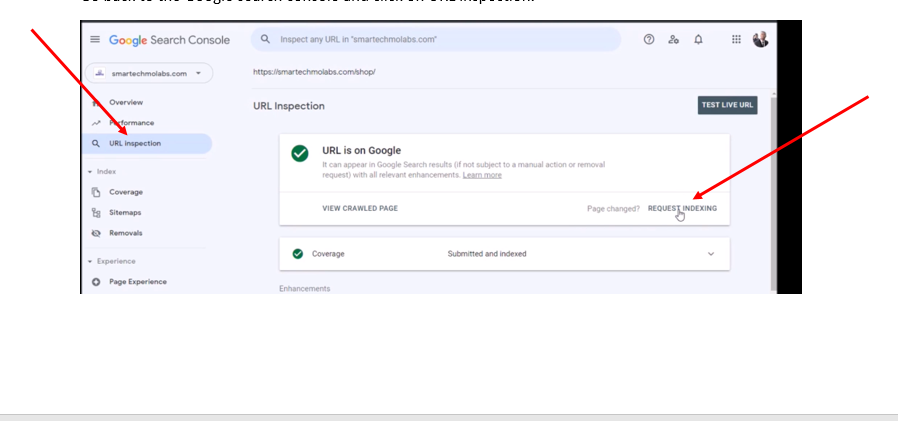
Click on request indexing next.
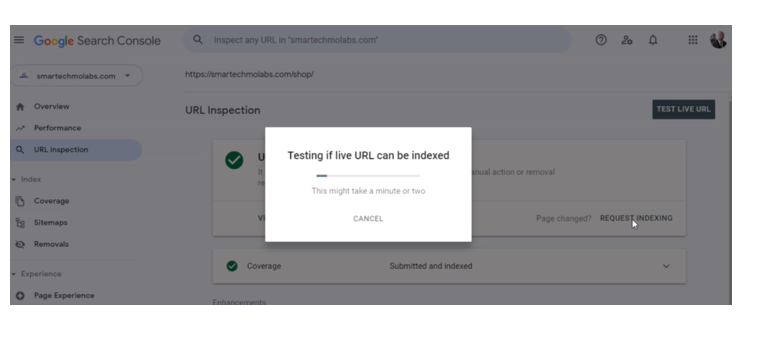
Ensure that you re-index all your pages on your website using the Google search console, this would ensure you have completed your how to fix/remove Japanese keyword Hack/Japanese SEO hack free. The YouTube video shows more details on how to generate and use Google sitemaps to re-index your page.
Remove Japanese Keyword Hack: Re-indexing on Bing Search Console.
This is achieved by going to the link. The Bing search console is owned by Microsoft and it is popular for search engine results done using the Internet Explorer browser.
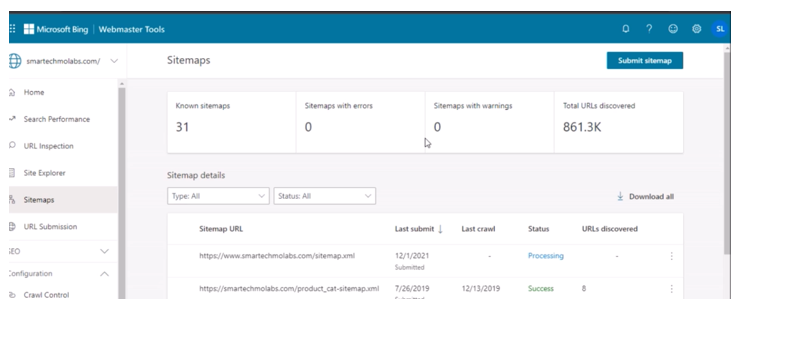
Follow the same steps done with Google search console and Click on Submit sitemap. Add the domain URL and click submit.
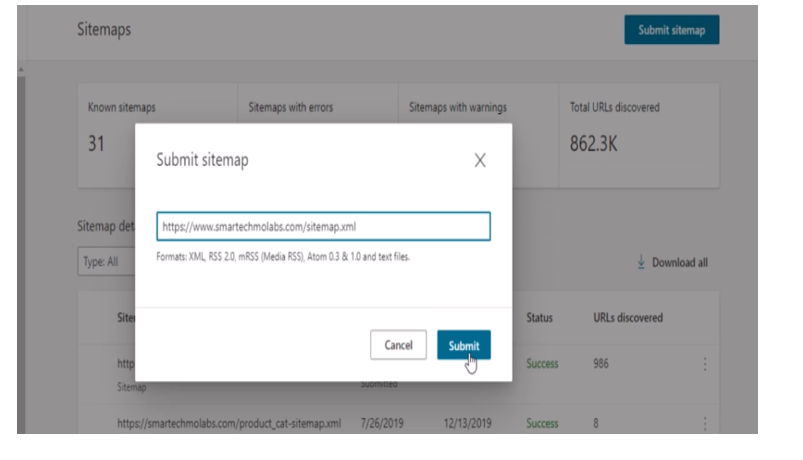
Using Popular Sitemaps
A clean and accurate sitemap helps search engines understand the correct structure of your website after the hack has been removed. Generating a new sitemap ensures that old spam URLs are no longer submitted to search engines. When the new sitemap is submitted to Google Search Console or other search engines, it provides a clean reference of your real pages.
Many WordPress plugins can generate updated sitemaps automatically. The important part is making sure the sitemap no longer includes any hacked pages, since search engines rely on it as a guide for indexing your website properly.
Another fast way to ensure many popular search engines get your website’s content is to use XML sitemaps. You can use this by going to the link. This would direct you to the page shown below.
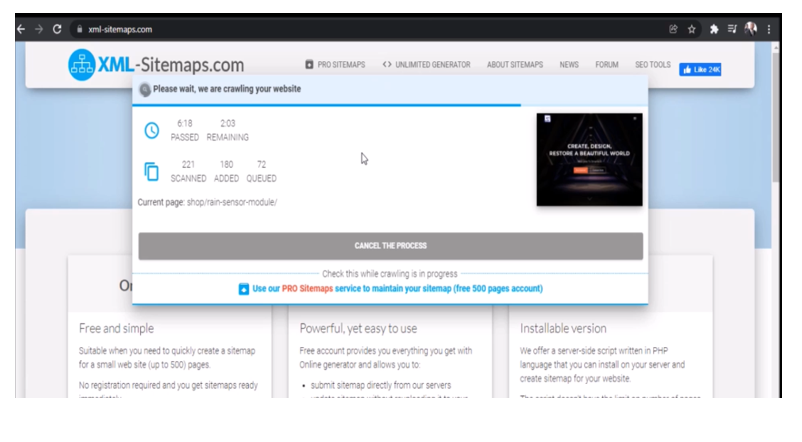
We input our website link and let it do the rest. They required us to sign up before using the free version, but after that, it was able to index the pages across many popular search engines.
Check the Results on Search Engines
Once your website has been cleaned, re-indexed, and provided with a new sitemap, the next step is monitoring the results. You may begin checking your domain name on Google to confirm that the Japanese spam pages have disappeared. Sometimes search engines need time to remove old URLs, so regular checking helps you track the recovery progress.
You can also review your Search Console for updates, especially any warnings that may appear. Over time, you should notice your real pages returning to the search results, and overall site health gradually improving.
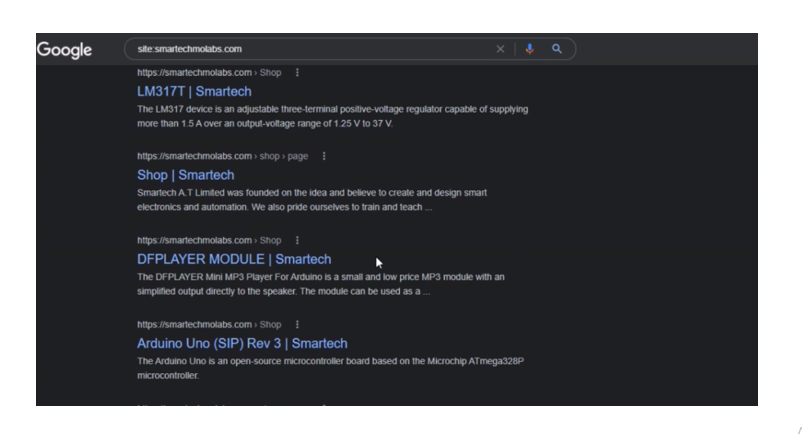
After the above steps have been successfully completed, we have to wait for the search engines to crawl the website again. This may take some time. It may take days or even weeks before Google and the other search engines can recrawl our website pages and display the intended results successfully. But after a period of one week, we came back to check again. The results on Google search when we type the same search query, this time the results have changed.
Also, using the Internet Explorer browser, the results on Bing search too has been updated accordingly.
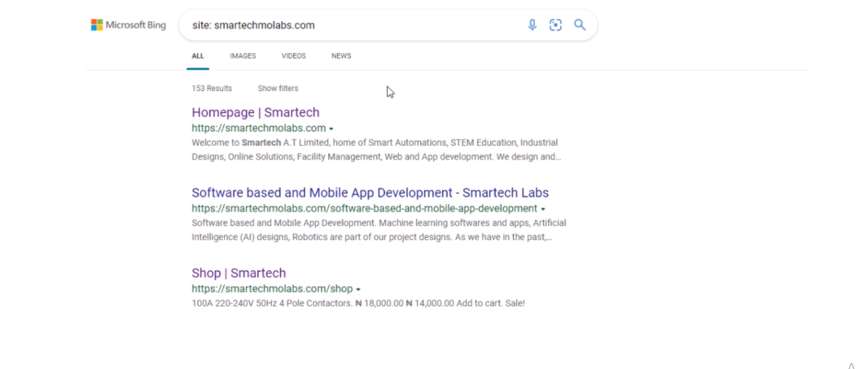
However, they may still be some few exceptions. The pages on the websites may not be properly crawled by the search engines so all of its results won’t be updated accurately at the same time.
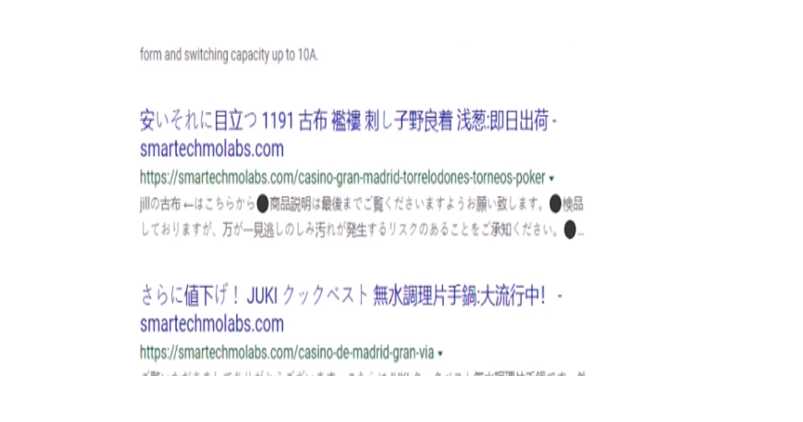
This shouldn’t make you panic if you see this in your own results. The validity of solution can be verified by clicking on the page result displayed and once it shows an error 404 ; page was not found. We know that we are still good in business.
These steps explicitly explained above are the summary of how to fix/remove Japanese Keyword Hack/Japanese SEO hack free from your website.
Things to note and do always to keep your website safe.
- Always update your WordPress outdated/expired plugins
- Always update outdated/expired themes
- Always update outdated/expired WordPress version.
Failure to update and secure the above mentioned 3 things would give hackers what they need to to gain access to most WordPress websites. An outdated theme gives the hacker easier access to your login details or ways to attack your WordPress site. So does an outdated plugin or theme.
4. Use a good Antivirus and security plugin like Wordfence. This would continuously run scan and update you on outdate plugins and themes. And it would equally stop web attacks on your website.
5. Consider going away from using Content Management System (CMS) like WordPress to something better like Bootstrap.
Conclusion
The Japanese Keyword Hack is a frustrating and dangerous malware attack that can harm your website’s SEO and reputation. But with the right approach, you can remove it completely and protect your website from future infections.
By following this step-by-step guide, you can identify infected files, clean malicious code, re-index your site, and implement strong security measures. If you need extra help, consider reaching out to a professional security expert.
The Japanese Keyword Hack can cause serious damage to your website’s SEO, traffic, and reputation, but it can be completely resolved with the right steps. Understanding how the hack works helps you identify it quickly, while cleaning your files, restoring your content, and re-indexing your site ensures a full recovery. Regular monitoring and updated sitemaps help maintain your search presence and avoid future attacks.
If you continue maintaining strong security practices, your website will remain protected and continue performing well across all major search engines.
Take action today to secure your website and keep it safe from future attacks!
FAQs
1. How do I know if my site has been hacked?
You can check for the Japanese Keyword Hack by searching site:yourwebsite.com on Google. If you see spammy Japanese text in the search results, your site is infected.
2. Can I remove the Japanese Keyword Hack for free?
Yes! You can remove it manually by scanning files with Wordfence, checking cPanel for malicious scripts, and cleaning your database.
3. What causes the Japanese Keyword Hack?
It usually happens due to vulnerable plugins, weak passwords, or outdated software. Hackers exploit these weaknesses to inject malicious code.
4. How long does it take to remove the malware?
The cleanup process can take a few hours to a couple of days, depending on the severity of the infection.
5. How can I prevent my site from being hacked again?
To prevent future hacks, use strong passwords, install security plugins, update WordPress regularly, and enable two-factor authentication (2FA).